Overview
The Header and Footer Settings panel lets you assign default headers and footers that appear across your site. Once you've created headers and footers using the builder, you can set them as defaults here.
To access these settings, navigate to TW Builder > Settings and click the Header/Footer tab.
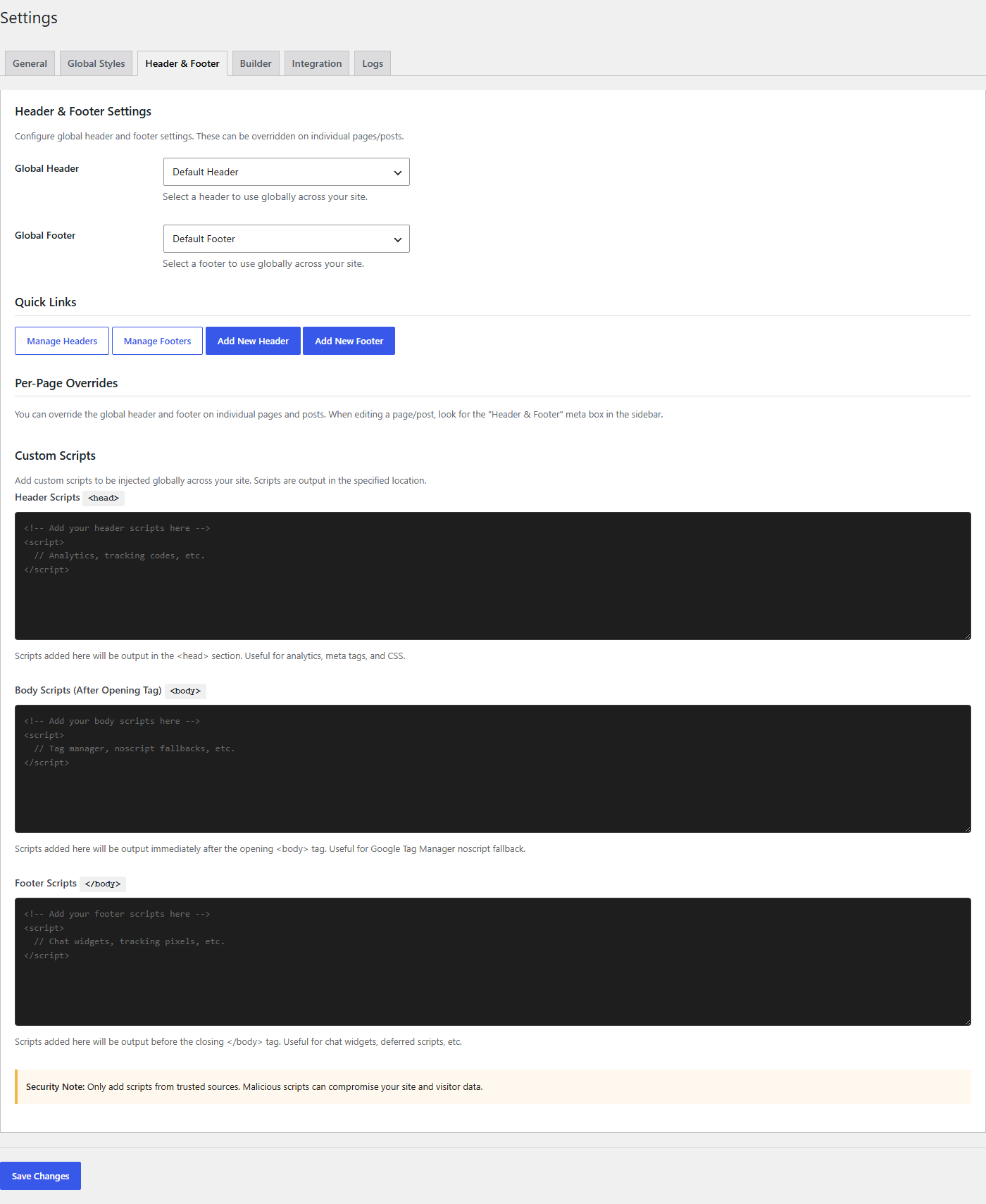
Settings Reference
| Setting | Description | Default |
|---|---|---|
| Default Header | Select the header that appears by default on all pages. The dropdown lists all headers you've created in TW Builder > Headers. | None |
| Default Footer | Select the footer that appears by default on all pages. The dropdown lists all footers you've created in TW Builder > Footers. | None |
Default Header
The Default Header dropdown shows all published headers from your site. When you select a header here, it will automatically appear at the top of every page that uses the TW Builder templates.
If no header is selected (set to "None"), pages will either:
- Show no header if using a TW Builder page template
- Use your theme's default header if using a standard WordPress template
You need to create at least one header before it will appear in the dropdown. See Features > Headers for instructions on creating headers.
Default Footer
The Default Footer dropdown works the same way as the header selection. When you select a footer here, it will automatically appear at the bottom of every page that uses TW Builder templates.
If no footer is selected (set to "None"), pages will either:
- Show no footer if using a TW Builder page template
- Use your theme's default footer if using a standard WordPress template
For instructions on creating footers, see Features > Footers.
Assignment Rules
Headers and footers follow a hierarchy of assignment rules. Understanding this hierarchy helps you control exactly which header and footer appear on each page.
Priority Order (Highest to Lowest)
- Page-specific override - If a page has a specific header or footer assigned in its Page Settings panel, that takes precedence over everything else.
- Post type default - If you've configured a default header/footer for a specific post type (e.g., all blog posts use Header B), that applies next.
- Site-wide default - The header/footer selected in this Settings panel applies to all pages that don't have a more specific assignment.
- None selected - If no header/footer is assigned at any level, the page either shows nothing or falls back to your theme's default.
Page-Specific Overrides
To assign a different header or footer to a specific page:
- Open the page in the TW Builder editor
- Click the Settings icon (gear icon) in the top toolbar
- Find the Page Header dropdown and select a header (or "None" for no header)
- Find the Page Footer dropdown and select a footer (or "None" for no footer)
- Save the page to apply changes
Common Scenarios
| Scenario | Solution |
|---|---|
| Same header/footer on all pages | Set site-wide defaults in Settings. No page-level overrides needed. |
| Landing page with no header | Edit the landing page and set Page Header to "None". |
| Different header for blog posts | Create a second header for blog posts, then configure post type defaults. |
| Transparent header on homepage only | Create a transparent header variant, assign it specifically to the homepage. |
Troubleshooting
Header/Footer Not Showing
- Check the dropdown - Make sure a header/footer is selected in Settings
- Verify it's published - Draft headers/footers don't appear in the dropdown
- Check page override - The page might have "None" selected in its Page Settings
- Confirm template - Make sure the page is using a TW Builder template, not your theme's template
Wrong Header/Footer Showing
- Check page override - Look for a page-specific assignment that's taking precedence
- Check post type defaults - A post type might have its own default configured
- Clear cache - If using a caching plugin, clear the cache after changing settings