Overview
Footers are the bottom sections of your website that typically contain secondary navigation, contact information, social links, and legal text like copyright notices. With Tailwind CSS Builder, you can design fully custom footers that match your brand and provide visitors with important information and links.
Well-designed footers serve multiple purposes:
- Navigation - Provide alternative paths to important pages
- Contact information - Display business address, phone, and email
- Social proof - Link to social media profiles and showcase trust badges
- Legal compliance - Display copyright, privacy policy, and terms links
- Lead capture - Include newsletter signup forms
Unlike headers which focus on navigation, footers often contain more diverse content. Consider what information your visitors look for when they scroll to the bottom of a page - contact details, policies, additional links, and ways to connect with your brand.
Creating a Footer
Follow these steps to create a new custom footer:
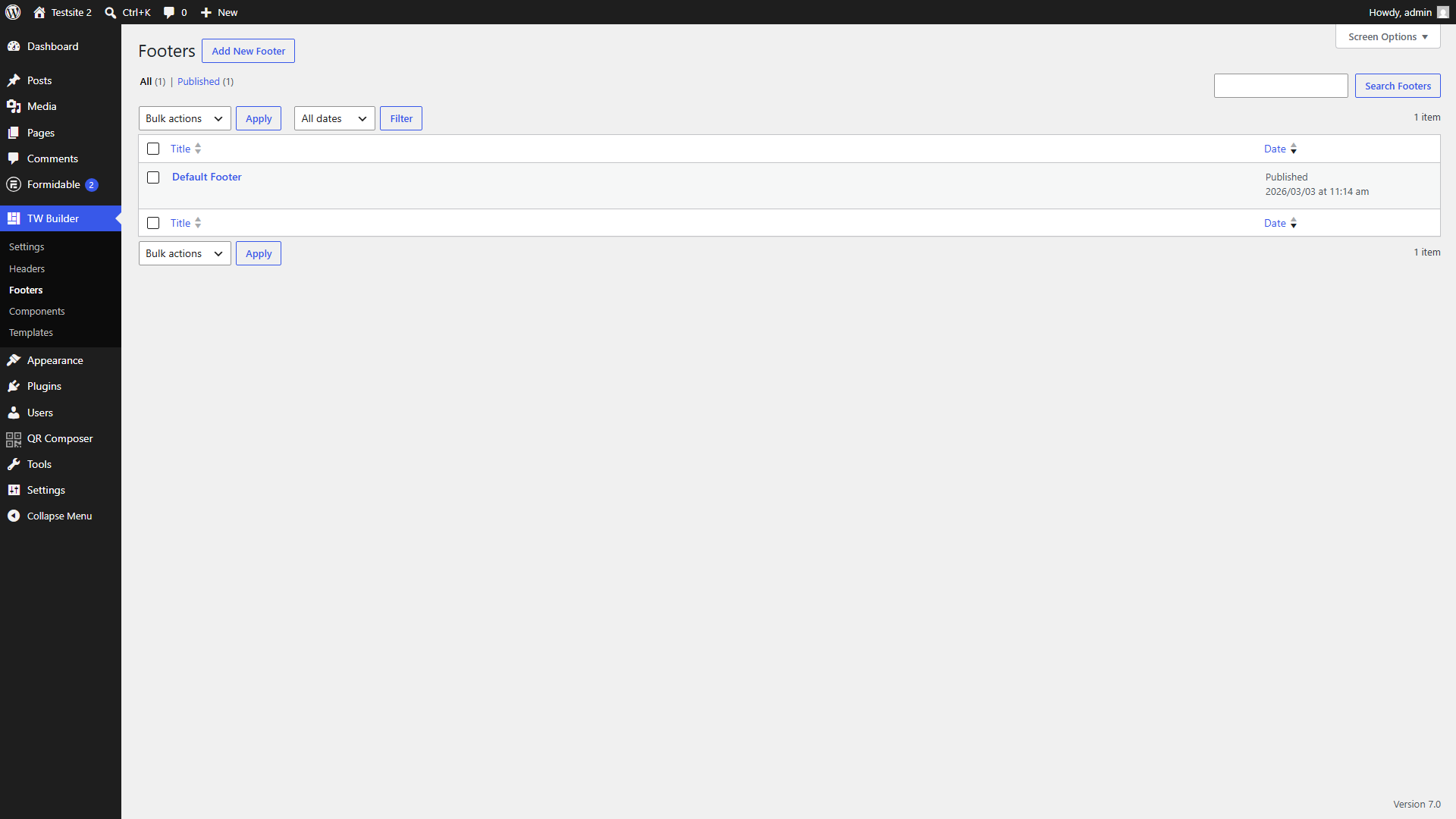
- Navigate to TW Builder > Footers in your WordPress admin sidebar. This opens the Footers management area where you can see all your existing footers.
- Click "Add New Footer" at the top of the page. This creates a new footer post and prepares the builder.
- Give your footer a name (e.g., "Main Site Footer" or "Simple Footer"). This name helps you identify the footer when assigning it to pages.
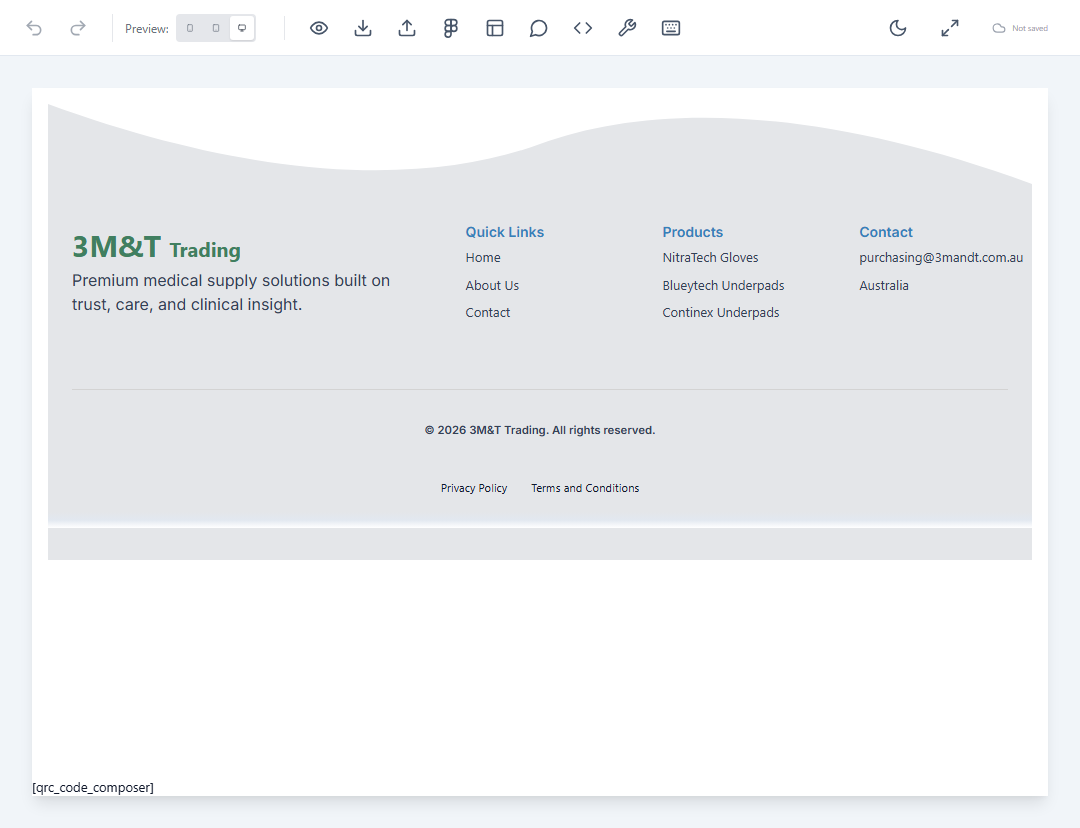
- The builder opens with a footer-specific canvas. You'll see a workspace ready for footer design with full-width capabilities.
- Add elements from the element panel. Click the Elements button (or press E) to open the element panel and drag footer elements onto the canvas.
- Arrange and style your footer using the Inspector panel. Select elements to adjust their spacing, colors, typography, and layout.
- Save and publish your footer by clicking Save in the bottom bar. Your footer is now ready to be assigned to pages.
Footer Elements
The following elements are commonly used when building footers. While all elements are available, these are particularly useful for footer content:
| Element | Description | Common Use |
|---|---|---|
| Text | Simple text element for paragraphs and inline content. Supports HTML entities for special characters. | Copyright text, taglines, addresses |
| WP Menu | Renders a WordPress navigation menu. Often styled differently than header menus (vertical or horizontal simple links). | Footer navigation, policy links |
| Social Icons | Row of social media icons linking to your profiles. Highly customizable with different styles and sizes. | Social media links section |
| Logo | Your site logo, often displayed at a smaller size or in a different variant (e.g., white version for dark footers). | Brand reinforcement |
| Grid Columns | Multi-column layout container. Essential for organizing footer content into logical sections. | Multi-section footer layouts |
| Rich Text | WYSIWYG-style text with formatting options. Supports headings, lists, and links within a single element. | Contact info blocks, about text |
Create dedicated footer menus in Appearance > Menus. Footer menus typically include links to About, Contact, Privacy Policy, Terms of Service, and other secondary pages that don't need to be in the main navigation.
Editing Footers
To edit an existing footer:
- Go to TW Builder > Footers in your WordPress admin to see the list of all footers.
- Hover over the footer you want to edit and click "Edit" (or click the footer title directly).
- Make your changes in the visual builder. Add, remove, or restyle elements as needed.
- Click Save to update the footer. Changes will immediately appear on all pages using this footer.
Like headers, changes to a footer affect all pages using it. For pages that need a unique footer (e.g., landing pages with minimal footer), create a separate footer variant.
Assignment Rules
Once you've created footers, you need to assign them to your pages. Footers follow the same priority system as headers.
For complete details on how footer assignment works, including site-wide defaults, post type defaults, and page-specific overrides, see Settings > Header and Footer.
In brief, the assignment priority from highest to lowest is:
- Page-specific override - Footer assigned directly to a page in its Page Settings
- Post type default - Footer configured for all posts of a specific type
- Site-wide default - Footer selected in TW Builder > Settings > Header/Footer
Common Footer Patterns
Here are some popular footer layouts you can create with the builder:
Simple Centered Footer
A minimal footer perfect for simple sites or landing pages:
- Single Section with centered text alignment
- Logo element (small size) at the top
- Social Icons row below the logo
- Text element with copyright at the bottom
- Generous vertical padding for breathing room
Multi-Column Footer
The classic footer layout for comprehensive sites:
- Section with dark or contrasting background
- Container with Grid Columns (typically 3-4 columns)
- Column 1: Logo, brief company description, social icons
- Column 2-3: WP Menu elements with link categories (Products, Company, Support, etc.)
- Column 4: Contact information or newsletter signup
- Bottom bar with copyright and policy links (separate row)
Footer with Newsletter Signup
Drive email subscriptions from your footer:
- Full-width section above the main footer content
- Heading like "Stay Updated" or "Join Our Newsletter"
- Form element with email input and submit button (requires form plugin integration)
- Brief value proposition text
- Main footer content below
For multi-column footers, use responsive column settings. A 4-column footer on desktop might become 2 columns on tablet and stack to a single column on mobile. Set this in the Grid Columns inspector under responsive options.
Tips for Better Footers
- Contrast - Footers often use a darker background to visually separate them from page content
- Typography - Use slightly smaller text sizes in footers (14px-16px is common)
- Link styling - Make footer links clearly clickable with hover states
- Spacing - Add generous padding around footer content for readability
- Keep it current - Update the copyright year dynamically if possible, or remember to update it annually