Overview
The Template Browser provides a library of professionally designed, pre-built sections that you can insert directly into your pages. Instead of building common page sections from scratch, browse the template library and find a starting point that's close to your vision, then customize it to match your brand.
Templates are ideal for quickly adding:
- Hero sections - Eye-catching above-the-fold areas with headlines and CTAs
- Feature grids - Showcase product benefits or service offerings
- Testimonials - Customer quotes and social proof sections
- Pricing tables - Plan comparisons and pricing displays
- Contact sections - Forms and contact information layouts
The Template Browser requires an Agency license. This feature is part of the Agency plan which includes the section library, saved components, and other advanced features.
Templates are pre-built sections from the library - think of them as starting points designed by the theme. Components are your own saved element groups that you create and reuse. Use templates to get started quickly; use components to save and reuse your custom designs.
Template Categories
The Template Browser organizes sections into categories to help you quickly find what you need. Select a category in the left sidebar to filter the available templates.
| Category | Description |
|---|---|
| Hero | Full-width hero sections with headlines, taglines, call-to-action buttons, and background images. Perfect for the top of landing pages. |
| Features | Feature grids and highlight sections. Display product benefits, service offerings, or key selling points in organized layouts. |
| Content | Text-focused sections for about pages, company information, mission statements, and general content blocks. |
| Testimonials | Customer quotes, reviews, and social proof sections. Build trust with visitor endorsements from happy customers. |
| Pricing | Pricing tables, plan comparisons, and subscription displays. Help visitors compare options and choose a plan. |
| CTA | Call-to-action sections and signup forms. Drive conversions with compelling action prompts. |
| Contact | Contact forms, maps, and contact information layouts. Make it easy for visitors to reach you. |
| Footer | Footer templates with links, copyright text, and social icons. For use when building custom footer layouts. |
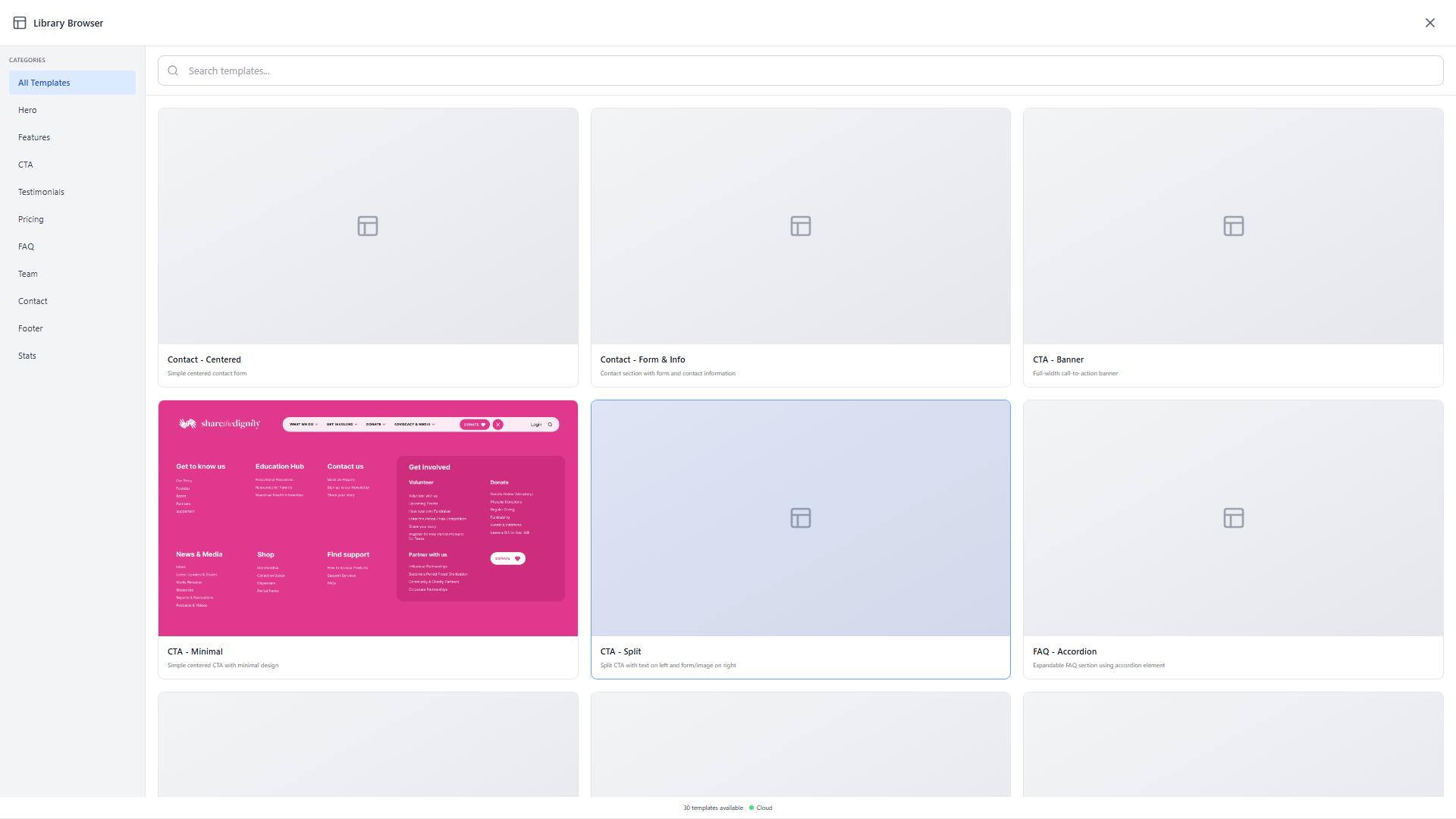
Inserting Templates
Follow these steps to browse and insert a template into your page:
- Open the Template Browser - Click "Templates" in the sidebar or press T on your keyboard. This opens the fullscreen Template Browser modal.
- Filter by category (optional) - Click a category in the left sidebar to show only templates of that type. Select "All Templates" to see everything.
- Search for templates (optional) - Use the search bar at the top to filter templates by name or description. Type keywords like "hero gradient" or "pricing three column".
- Preview a template - Click on any template card to select it. The right panel shows a larger preview, description, and the Import button.
- Insert the template - Click the "Import Template" button to add the template to your canvas. The template elements appear at the bottom of your page.
- Position the template - After insertion, drag the template section to your desired position on the canvas, or leave it at the bottom if that's where it belongs.

Press T from anywhere in the builder to instantly open the Template Browser. Press Escape to close it without inserting anything.
Customizing Templates
Once inserted, templates become regular elements that you can fully customize. The inserted elements are not linked to the original template - any changes you make only affect your page, not the template in the library.
Common Customizations
- Edit text content - Click any heading or text element to edit the content. Replace placeholder text with your own copy.
- Change images - Select image elements and use the Inspector to upload your own images or change the source URL.
- Adjust colors - Select elements and modify background colors, text colors, and border colors to match your brand palette.
- Modify spacing - Use the Inspector's Spacing controls to adjust padding and margins for better visual balance.
- Rearrange elements - Drag elements within the template section to reorder them, or drag them to other parts of your page.
- Delete unwanted elements - Remove any elements you don't need by selecting them and pressing Delete or using the context menu.
- Add new elements - Insert additional elements from the Elements panel to extend the template with your own content.

After customizing a template to your liking, you can save it as a component for reuse on other pages. Right-click the section and select "Save as Component" to add your customized version to your component library.
Tips for Using Templates
Get the most out of the Template Browser with these best practices:
Start Close, Then Customize
Browse templates to find one that's close to your vision, even if it's not perfect. It's faster to customize a template than to build from scratch. Focus on the layout and structure first, then swap in your content and brand colors.
Combine Multiple Templates
Don't limit yourself to one template per page. Insert templates from different categories to quickly assemble a complete landing page:
- Start with a Hero template at the top
- Add a Features section to showcase benefits
- Include a Testimonials section for social proof
- Finish with a CTA section to drive conversions
Learn from Template Structure
Templates are excellent learning resources. After inserting a template, click through its elements to see how professional sections are structured. Notice how containers, grids, and spacing are used to create polished layouts. Apply these patterns when building your own sections from scratch.
Check Responsive Behavior
After customizing a template, use the responsive preview (tablet and mobile icons in the top toolbar) to verify your changes look good on all screen sizes. Templates are designed to be responsive, but heavy customization may require additional responsive adjustments.
Templates are great for speed, but sometimes you need full control. See the Quick Start guide to learn how to build pages element by element when templates don't fit your needs.