The Tailwind CSS Builder provides a visual drag-and-drop interface for building pages. Instead of writing code, you design directly in the browser by selecting elements, dragging them onto the canvas, and styling them with visual controls. Understanding the interface layout will help you work efficiently and find the tools you need quickly.
Interface Overview
The builder interface is divided into five main regions, each with a specific purpose. Here's an annotated screenshot showing where everything is located:
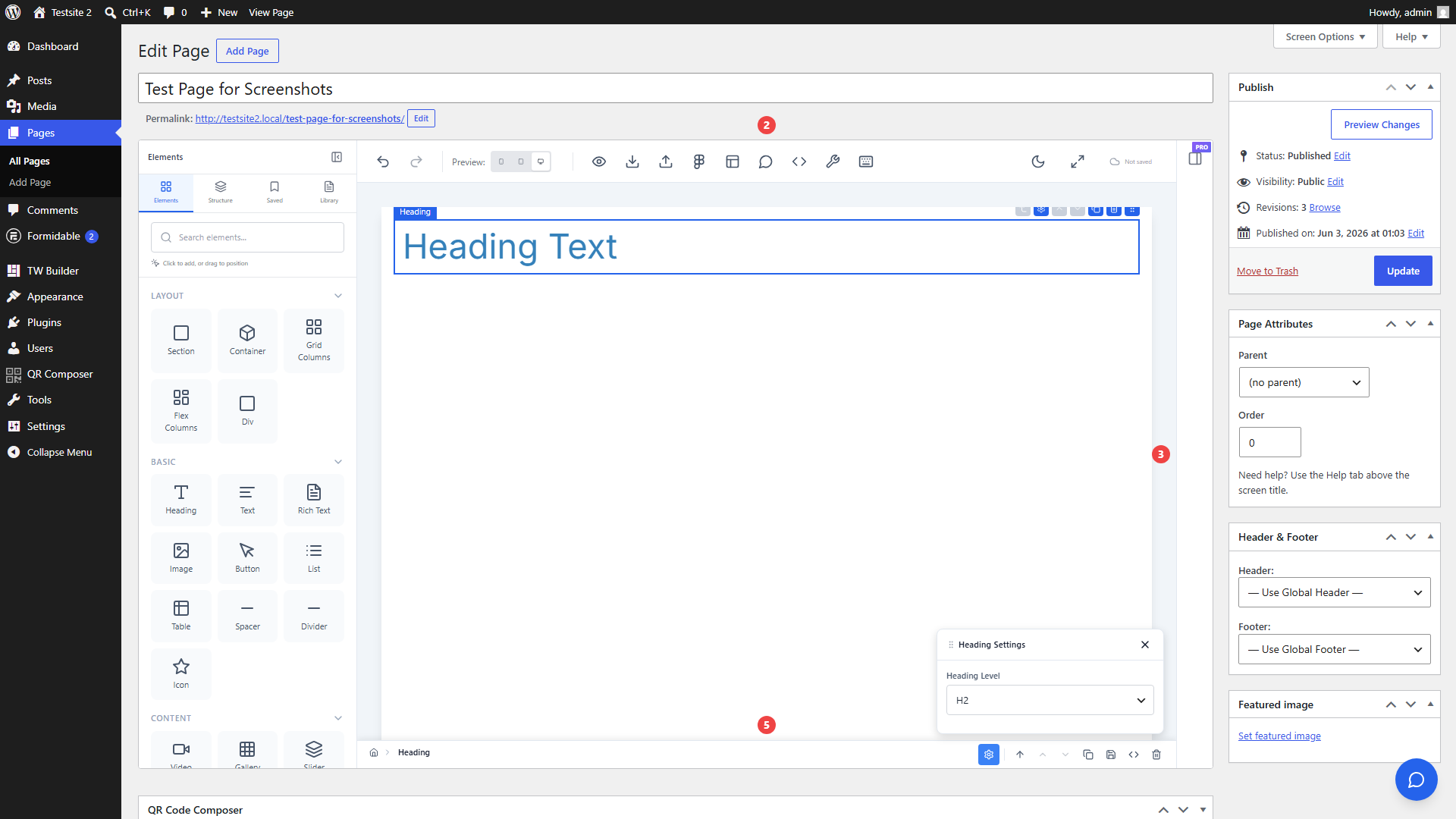
1. Sidebar (Elements Panel)
The sidebar is located on the left side of the screen. This is where you find all the building blocks for your page.
- Contains draggable elements organized by category (Layout, Basic, Content, Interactive, Code, WordPress)
- Includes multiple tabs for Elements, Saved Components, and Templates
- Categories expand/collapse to help you find elements quickly
- Can be collapsed to icon-only view for more canvas space
Press E to toggle the Elements panel open or closed.
See Elements documentation for all available elements organized by category.
2. Canvas
The canvas is the central workspace where you actually build your page. This is where you spend most of your time.
- Drag elements from the sidebar onto the canvas to add them to your page
- Click elements to select them for editing
- Double-click text to edit content inline
- Supports zoom and pan for navigating large pages
- Shows responsive preview at different breakpoints (desktop, tablet, mobile)
- Visual guides appear when dragging to show valid drop zones
The canvas shows your page exactly as it will appear to visitors. What you see is what your users get.
See Canvas documentation for navigation details and canvas controls.
3. Inspector Panel
The inspector is located on the right side of the screen. It appears when you have an element selected and contains all the styling controls.
- Appears automatically when you select an element on the canvas
- Contains all styling controls: spacing, typography, colors, backgrounds, effects, and more
- Organized into collapsible sections so you can focus on what you need
- Shows element-specific options based on what type of element you have selected
- Supports responsive styling - set different values for different screen sizes
Press I to toggle the Inspector panel open or closed.
See Inspector documentation for all available style controls.
4. Top Toolbar
The top toolbar contains global builder controls that affect the entire editing session rather than individual elements.
- Undo/Redo buttons - Go back or forward through your editing history
- Responsive preview toggles - Switch between Desktop, Tablet, and Mobile views
- Theme toggle - Switch the builder between light and dark mode
- AI Assistant button - Opens the AI chat panel (if enabled with Pro/Agency license)
- Structure button - Opens the element tree view for navigating complex pages
The builder keeps up to 50 undo states in memory. Use Ctrl+Z to undo and Ctrl+Shift+Z to redo.
5. Bottom Bar
The bottom bar contains page-level actions for saving, previewing, and managing your page.
- Save button - Saves your page content to WordPress
- Preview button - Opens a new tab showing how your page looks on the frontend
- View HTML button - Shows the generated HTML markup for your page
- Settings button - Opens page-level settings (page CSS, page JavaScript, etc.)
- Save as Component button - Save selected elements as a reusable component
The builder does not auto-save. Use Ctrl+S frequently to save your work and avoid losing changes.
Working with the Interface
Here are some tips to help you work more efficiently with the builder interface:
Press E to toggle the Elements panel, I to toggle the Inspector. This gives you more canvas space when you need it.
Double-click text elements to edit content inline. You don't need to use the Inspector for basic text changes.
Use the Structure tab in the sidebar to navigate complex page hierarchies. It shows your entire element tree and lets you select nested elements that might be hard to click on the canvas.
Common Keyboard Shortcuts
Learning these shortcuts will significantly speed up your workflow:
| Shortcut | Action |
|---|---|
| E | Toggle Elements panel |
| I | Toggle Inspector panel |
| Ctrl+S | Save page |
| Ctrl+Z | Undo |
| Ctrl+Shift+Z | Redo |
| Ctrl+C | Copy selected element |
| Ctrl+V | Paste element |
| Delete or Backspace | Delete selected element |
| Escape | Deselect current element |
Next Steps
Now that you understand the builder interface, explore these topics to learn more:
- Canvas - Learn canvas navigation, zoom, pan, and selection techniques
- Inspector - Master all the style controls available in the Inspector panel
- Elements - Explore all 40+ elements you can use in your pages
- Keyboard Shortcuts - Complete reference of all keyboard shortcuts